Convert HDD to VDI
How to convert Parallels hdd virtual disk files to VirtualBox VDI format.
Make VDI files online
We can't read HDD files yet, so this conversion isn't available. If you can export your work to one of these formats - or others - we'll turn it into VDI:
How to convert hdd to vdi file
- Virtualization
- Rating: 5.0/5
Virtual disk images (VDIs) are used by VirtualBox, while HDD files are a common virtual disk format for Parallels Desktop. If you're switching between virtualization platforms or need to use an HDD file in VirtualBox, you can convert it to a VDI file. You can convert virtual disk files from other software using VirtualBox's built-in tools and third-party utilities.
What are HDD and VDI formats?
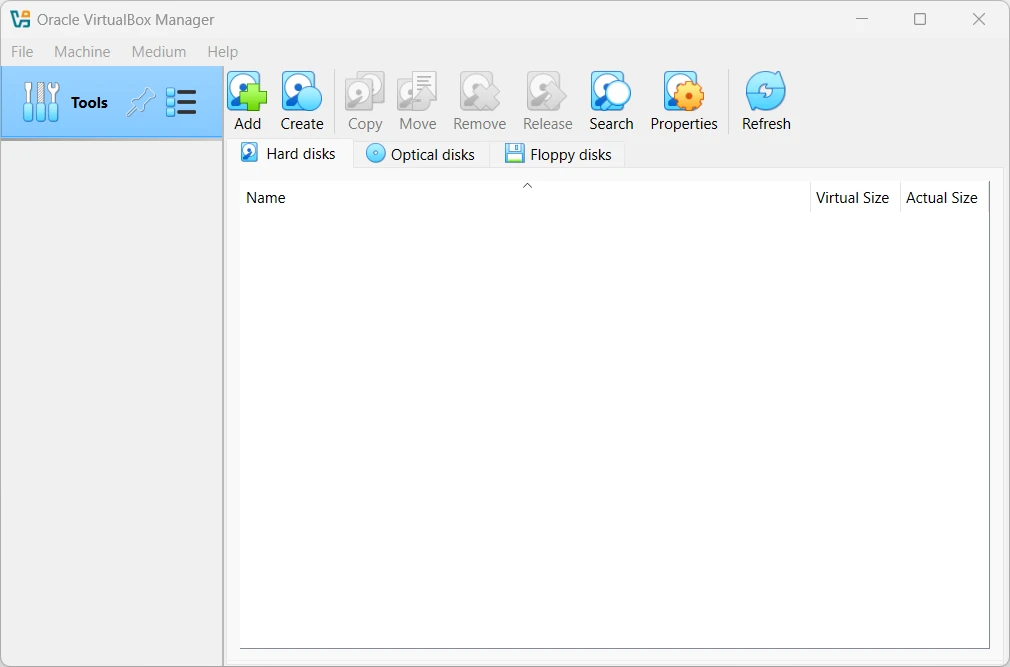
HDD files are the virtual disk format used by Parallels Desktop, containing the operating system and data of the virtual machine (VM). VDI files, on the other hand, are the native virtual disk format for VirtualBox. Converting these files ensures compatibility when transferring a VM from one platform to another. Following this guide, you can seamlessly transition your virtual environments between Parallels Desktop and VirtualBox.
Steps to convert HDD to VDI
- Install VirtualBox - Ensure that VirtualBox is installed on your system.
- Confirm that the HDD file is accessible and not corrupted.
- VirtualBox includes a command-line tool, VBoxManage, for managing virtual disks, including format conversion.
- Locate the HDD file and its file path for use in the conversion command.
- Open the command line interface on your system. On Windows, this is the Command Prompt; on macOS and Linux, use the Terminal.
- Run the conversion command with VBoxManage:
VBoxManage clonehd "source_path/source_file.hdd" "target_path/target_file.vdi" --format vdi- Replace
source_path/source_file.hddwith the full path to the HDD file. - Replace
target_path/target_file.vdiwith the desired path and filename for the VDI file.
- Replace
- The process may take some time, depending on the size of the HDD file. During the conversion, VBoxManage clones and transforms the disk format.
- After the conversion is complete, check the specified target location for the VDI file. You can now use it to create a new virtual machine in VirtualBox.
The VBoxManage tool is versatile, supporting other formats like VHD and VMDK, making it a robust choice for virtualization tasks. To avoid data loss, back up your original files before conversion.
HDD vs VDI: format comparison
How the HDD and VDI formats compare on the properties that matter most for this conversion.
| Property | .HDD Parallels Desktop Hard Disk Image | .VDI VirtualBox Virtual Disk Image |
|---|---|---|
| Compression | Both | Both |
| Bootable | Yes | Yes |
| Operating system support | Limited | Wide |
| Typical file size | Large | Very large |
| Open standard | No | No |
| Introduced | — | 2007 |
| Developer | Parallels, Inc. | Oracle (originally InnoTek / Sun Microsystems) |