
Convert WOTBREPLAY to MKV
How to convert WOTBREPLAY files to MKV format.
Make MKV files online
We can't read WOTBREPLAY files yet, so this conversion isn't available. If you can export your work to one of these formats - or others - we'll turn it into MKV:
How to convert wotbreplay to mkv file
- Computer games
- No ratings yet.
WOTBREPLAY and MKV file formats
WOTBREPLAY files are replay files created by World of Tanks Blitz, a popular online multiplayer game. These files store information about gameplay, including player movements and actions, which can be replayed within the game. However, WOTBREPLAY files are not video files and cannot be directly played on standard media players.
MKV (Matroska Video) files are multimedia container formats that can hold unlimited video, audio, picture, or subtitle tracks in one file. They are widely supported and known for their high-quality video playback capabilities.
Converting WOTBREPLAY to MKV
To convert a WOTBREPLAY file to an MKV file, you first need to capture the replay as a video. This process involves recording the screen while the replay plays in World of Tanks Blitz. Once you have the video, you can convert it to MKV format.
Step 1: Record the World of Tanks Blitz game replay
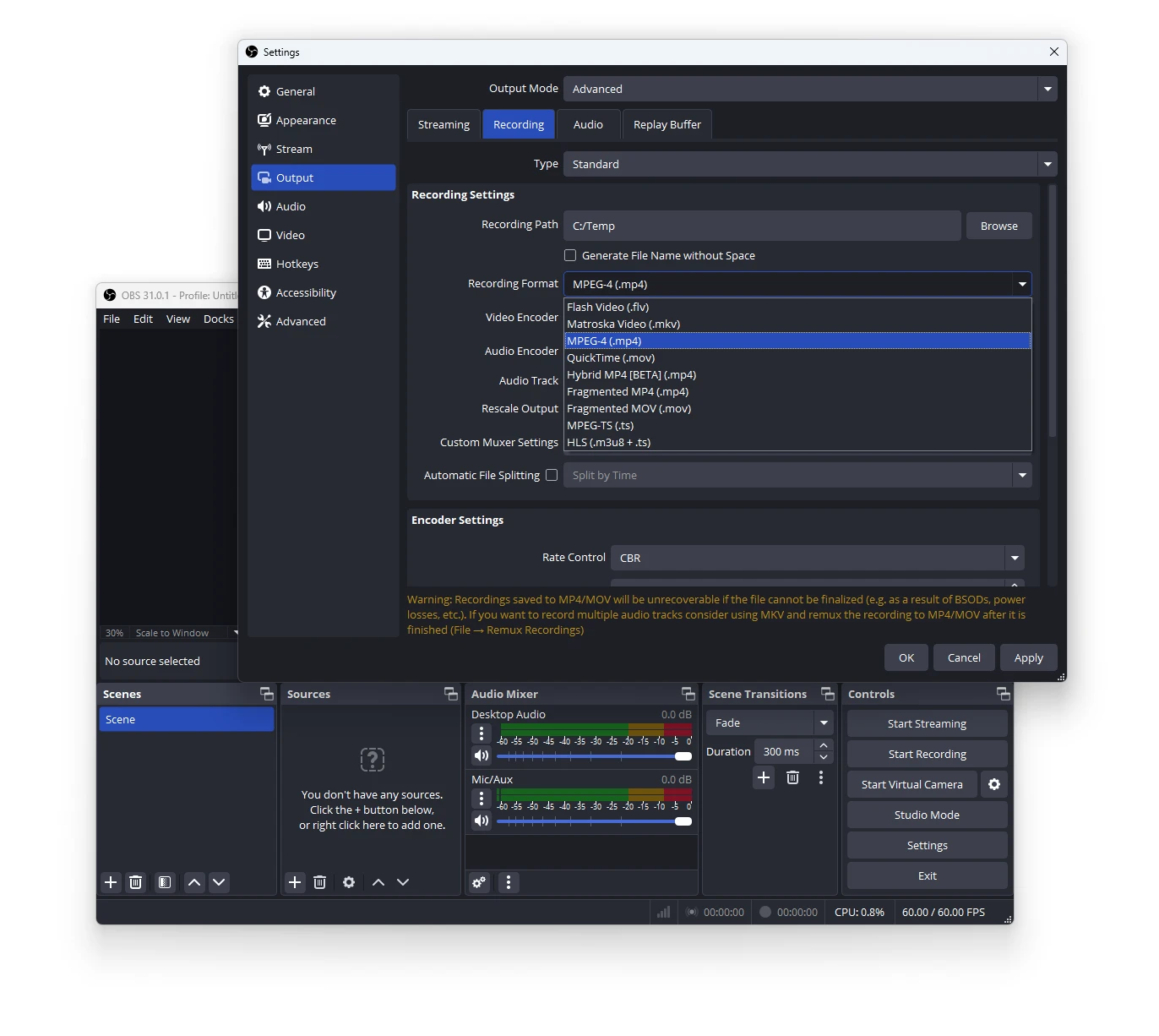
Use screen recording software like OBS Studio to capture the gameplay. Set up OBS Studio to record your screen while you play the WOTBREPLAY file in World of Tanks Blitz.
1. Open OBS Studio.
2. Set up a new scene and add a display capture source.
3. Set output recording video format to MKV.
3. Start the replay in World of Tanks Blitz and begin recording in OBS.
4. Stop recording once the replay finishes.
Step 2: Convert the recorded video to MKV
After recording the gameplay, if you don't set up MKV as recording video output format, use a video converter like HandBrake to convert the video file to MKV format.
1. Open HandBrake.
2. Click File → Open Source and select your recorded video.
3. Choose MKV as the output format.
4. Configure video and audio settings as needed.
5. Click Start Encode.
After these steps, you will have your gameplay in MKV format, ready to be viewed or shared.